
Documentation

Install J!UM and put it into Operation Securely

The documentation guides you from the central installation through to the first controlled update. Each step describes the prerequisite, the expected result and typical causes if a connection or action is not successful.
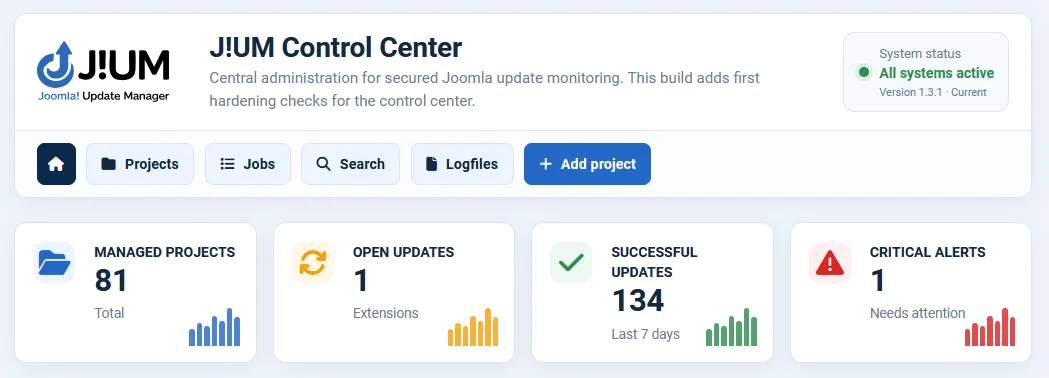
1. Quickstart

  • Install the J!UM package on a dedicated Joomla 6 installation. J!UM is designed to run as a standalone Control Center.
  • After installation, check the system status: Joomla 6, PHP 8.3 or newer, libsodium, SMTP and additional HTTP password protection should be configured correctly.
  • Activate your J!UM license. The license plan determines the maximum number of projects you can manage: Starter 5, Professional 25, Agency unlimited.
  • Install the appropriate J!UM Client Connector for Joomla 5 or Joomla 6 on every website you want to manage.
  • Generate a long, random connector token with at least 32 characters on the client website. Transfer it securely to the corresponding J!UM project.
  • Create a project in J!UM. Enter the website URL, connector URL or automatic default, connector token and, if required, HTTP Basic credentials.
  • Click “Test Connection”. Only load the extension inventory after this test is successful.
  • Load the extensions and then start “Check for Updates”. J!UM updates the information for components, modules, plugins and templates.
  • Check the pending extension updates. If Akeeba Backup Pro is integrated, create a fresh backup first if required.
  • Start the extension update and monitor the persistent job. Afterwards, manually verify that the website is working correctly.

Core Updates Remain with Joomla

If J!UM detects a new Joomla Core version, it is displayed as a notice. The Core is not updated by J!UM. Use the Joomla update area of the respective website or Joomla's automatic update functionality instead.

2. System Requirements

Technical and organizational requirements for stable operation.

2.1 J!UM Control Center

RequirementRecommendation
Joomla
Joomla 6 on a dedicated Control Center installation.
PHP
PHP 8.3 or newer. Installation is aborted below PHP 8.3.
HTTPS
The Control Center and all connector targets must be accessible over HTTPS.
Libsodium
Required for secure local storage of J!UM license data.
SMTP
Recommended for reliable status, security and reminder emails.
Additional Access Protection
HTTP Basic Authentication or server-side password protection in front of Joomla is strongly recommended.
Extensions on the Control Center
The Control Center should contain only Joomla Core components and extensions that belong to the J!UM package.
Joomla Scheduler
Should be enabled. J!UM creates a queue task with a one-minute interval during package setup.

Dedicated Installation Recommended

The J!UM package also installs a secured frontend template and sets it as the default. Therefore, do not use the Control Center as a normal public website at the same time.

2.2 Managed Joomla Websites

RequirementRecommendation
Joomla Version
Joomla 5 or Joomla 6 with the corresponding J!UM Client Connector.
HTTPS
The connector is accessed over HTTPS only.
Publicly Accessible Host
Local, private and reserved target addresses are rejected for security reasons.
Connector Token
At least 32 characters; use a separate token for each website.
Update Sources
The Joomla update sites of installed extensions must be configured correctly.
Commercial Extensions
Vendor-specific download keys or update credentials must be configured correctly on the respective client website.

2.3 Security Check in the Control Center

J!UM checks the Joomla version, PHP version, libsodium, SMTP, HTTP password protection and extensions installed on the Control Center as part of the system status. Third-party extensions are marked as a notice or risk.
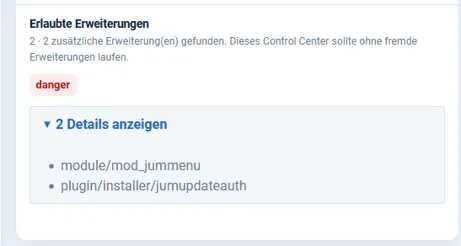
Example: The system status checks whether only approved extensions are installed on the Control Center.

3. Installation and Initial Configuration

Install J!UM as the central package, activate the license and check the system status.

3.1 Install the Package

  • Log in to the Joomla administrator area of the future Control Center.
  • Open System > Install > Extensions.
  • Upload the complete package pkg_a4p_jum.zip. Do not extract the package beforehand.
  • Wait until Joomla confirms the installation of all package components.
The J!UM package includes the central component, Scheduler plugin, protected update authorization, J!UM dashboard module, direct menu entry and secured frontend template.

3.2 Automatically Configured Components

  • The task plugin “J!UM - Scheduled Update Check” is enabled.
  • The installer plugin “J!UM - Protected Update Authorization” is enabled.
  • Joomla's Lazy Scheduler Runner is enabled where possible.
  • The Scheduler task “J!UM: Persistent Job Queue” is created or updated; recommended interval: 1 minute.
  • The included J!UM frontend template is set as the default where hosting or database policies allow it.

Check After Installation

If the hosting provider blocks plugin activation, Scheduler tasks or template changes, the package can still be installed. In that case, manually check System > Plugins, System > Scheduled Tasks and the template assignment.

3.3 Activate the J!UM License

Open J!UM > License. Enter the license key and activate the license. An existing license binding must be deactivated normally before switching. An inactive local binding can be removed separately.
PlanProject Limit
Starter
up to 5 projects
Professional
up to 25 projects
Agency
unlimited projects
All plans include the same feature set. The difference is the number of Joomla websites that can be managed. After maintenance expires, the purchased usage rights and booked project limit remain available; software updates and support are no longer enabled.

3.4 Secure the Control Center

  • Use HTTPS and additional HTTP Basic protection in front of Joomla.
  • Where possible, do not run unrelated components, modules, plugins or templates on the Control Center.
  • Configure SMTP and test email delivery.
  • Restrict J!UM to users with the required Joomla administrator permissions.
  • Back up the Control Center itself regularly outside the J!UM workflow.

4. Connector

Secure connection between the Control Center and a managed Joomla website.

4.1 Install the Connector

Install the J!UM Client Connector that matches the Joomla version on the client website. Separate connector packages are available for Joomla 5 and Joomla 6.
  • Install the connector using the Joomla installer on the client website.
  • Enable the connector plugin if Joomla has not already done so automatically.
  • Generate a random token with at least 32 characters in the connector.
  • Store the token in a secure location and transfer it to the corresponding J!UM project.

Token Management

Use a separate token for each website. Tokens must not be included in support screenshots, tickets or publicly accessible documentation.

4.2 Connector Data in J!UM

FieldMeaning
Website URL
Public HTTPS address of the managed Joomla website
Connector URL
Can be left empty; J!UM automatically generates the default URL from the website URL. Enter it manually only for non-standard setups.
Connector Token
At least 32 characters. For existing projects, leave this field empty if the stored token should remain unchanged.
HTTP Username / Password
Optional if the website or connector is additionally protected by HTTP Basic Authentication.

4.3 Test the Connection

The “Test Connection” action performs a short authenticated ping. The test checks whether the connector is reachable, whether the token is accepted and whether J!UM receives a valid JSON response.

Connector requests are sent only to HTTPS targets with public hosts. Responses are size-limited, and external error messages are sanitized before they are stored and displayed.

4.4 Common Connector Errors

Message / SymptomCheck
HTTP 401/403
Check the token, HTTP Basic credentials and server-side protection rules.
HTTP 404
Check the connector path, plugin activation and rewrite/routing rules.
Timeout
Check server load, firewall, proxy and reachability of the client website.
Invalid JSON Response
Check intermediary error pages, security plugins or proxy responses.
HTTPS/Public Host Required
Do not use local, private or unencrypted connector targets.

5. Projects

Centrally register, document and manage websites.

5.1 Create a Project

A project represents one separately managed Joomla website. Live, staging, test and development installations each count as a separate project if they are managed separately in J!UM.
FieldUse
Name
Freely selectable project name.
Hosting Provider
Internal information about the hosting provider.
Contact Person
Project or client contact.
Email
Used for the optional manual client contact form.
3-Month Trial Period
Optional trial-customer flag; the start date is stored on first activation and marked as expired after three months.
Website URL
Public HTTPS address.
Connector URL / Token
Technical connection details for the website.
HTTP Basic Credentials
Optional upstream password protection.
Notes
Internal project-specific notes.
Akeeba Backup Pro
Optional: API endpoint, secret and profile ID.
License Expiration Dates
Any extension licenses with expiration dates for reminders.

5.2 Project Overview

The project overview shows the status of all managed websites. This includes Joomla and PHP versions, pending extension updates, connector status, Akeeba/HTProtect notices and project-specific actions.

Filters help with larger project portfolios, for example by Akeeba Backup Pro, HTProtect or trial customers. URL search makes it easier to find individual projects quickly.
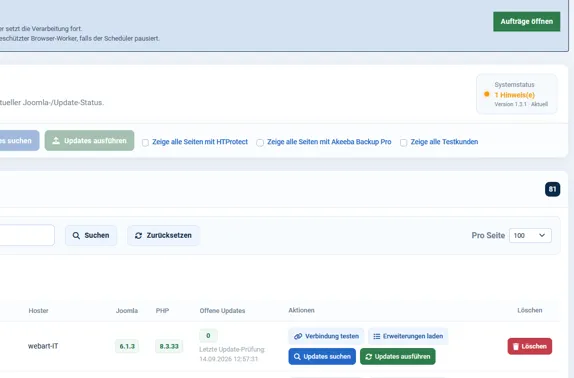
Example: Project list with central actions and status information.

5.3 Project Details

The detail page combines status, extensions, backups, HTProtect information, history and project data. From here you can test the connection, load the extension inventory, check for updates, start supported security checks and run Akeeba backups.
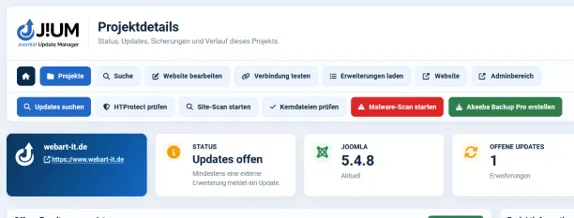
Example: Project detail page with central maintenance actions.

6. Updates and Extension Management

Centrally check and update components, modules, plugins and templates.

No Joomla Core Update

J!UM updates extensions only. Joomla Core updates are not performed through J!UM. J!UM can detect an outdated Joomla version and display a notice; the actual update is performed in the Joomla backend or through Joomla's automatic update functionality.

6.1 Load the Extension Inventory

Using “Load Extensions”, J!UM retrieves the installed extension inventory through the connector and stores the project-specific data centrally. This includes name, type, installed version, available version and update status.

6.2 Check for Updates

“Check for Updates” asks the managed Joomla website to check its update sources. J!UM then retrieves the refreshed extension status. This does not trigger a Joomla Core update.

J!UM can also detect whether Joomla itself reports a newer Core version. This state is used as a notice and can trigger an administrator email.

6.3 Update an Individual Extension

The detail page combines status, extensions, backups, HTProtect information, history and project data. From here you can test the connection, load the extension inventory, check for updates, start supported security checks and run Akeeba backups.
  • Open the project detail page.
  • Check the “Pending Extension Updates” section.
  • Select the desired extension and start the update.
  • J!UM creates a persistent job when the workflow is processed through the queue.
  • After completion, the inventory and update status are checked again. Also verify the website manually.

6.4 Multiple Extensions / Projects

Updates can be prepared in bulk per project or through cross-project search. For bulk updates started from search, J!UM processes a maximum of four projects per batch so that individual servers and the update infrastructure are not unnecessarily overloaded.

6.5 Cross-Project Search

Search finds extensions across all managed projects. Filters are available for search term, extension type, update status and PHP version, among others. This makes it possible, for example, to determine which projects use a specific component, module, plugin or template and where an update is pending.

6.6 If an Update Remains Pending

If Joomla still reports the extension as outdated after the installation attempt, check in particular:
  • valid vendor license or download key on the client website
  • reachable and correctly configured Joomla update site
  • compatibility with the Joomla and PHP versions in use
  • vendor instructions for manual migration or update steps
  • error notices in the J!UM history and Joomla system messages

7. Akeeba Backup Pro

Centrally start and monitor optional backups before maintenance tasks.

7.1 Requirements

  • Akeeba Backup Professional installed on the managed website
  • enabled Akeeba JSON API
  • secure Akeeba secret
  • valid profile ID, profile 1 by default
  • API endpoint reachable over HTTPS
If the Akeeba API URL field in J!UM is left empty, the classic Akeeba endpoint is generated automatically from the website URL. For different Akeeba versions or API setups, the endpoint can be adjusted manually.

7.2 Configure Backup

  • Open Edit Project.
  • Enable “Activate Akeeba Backup Pro for this website”.
  • For a standard configuration, leave the Akeeba API URL empty or enter the appropriate endpoint.
  • Enter the Akeeba secret. For later changes, leave the field empty if the existing secret should remain unchanged.
  • Enter the profile ID and save the project.

7.3 Start Backup and Track Progress

Backups are executed as persistent jobs. Akeeba works in individual engine steps; J!UM stores the reported progress, step number, domain, step and substep and displays this information in the job view.
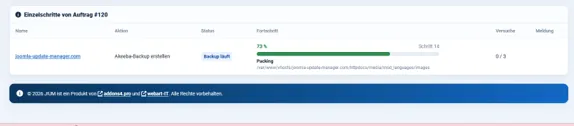
Akeeba progress display in a persistent J!UM job.

Technical Limits

A single Akeeba API step may take up to 60 seconds in J!UM. A maximum of 180 engine steps is allowed per backup. Errors are handled through the queue with a limited number of retry attempts.

7.4 Backup Status and Warnings

J!UM stores the timestamp of the last known successful backup. If the last backup is more than seven days old or no backup exists, J!UM can flag this as a warning and, if enabled, include it in the central administrator notification.

7.5 Scope of Responsibility

J!UM starts and monitors Akeeba backups, but it does not replace a backup strategy. Storage location, retention, encryption, remote storage and recovery continue to be configured in Akeeba Backup Pro. Full Akeeba log files are not provided or mirrored by J!UM.

8. HTProtect

Integrate optional security information and supported scans into J!UM.

8.1 Detection and Status

If a compatible HTProtect installation is detected through the connector, J!UM stores its version, availability, status, number of findings and a compact snapshot. This information is displayed per project in the detail view.

8.2 Supported Checks

  • Site Scan
  • Core File Check
  • Malware Scan
Depending on the supported HTProtect version, checks can be started from the project detail page. Bulk actions are available for multiple projects where HTProtect has been detected.

Core File Check Is Not a Core Update

The HTProtect core file check inspects files for security or integrity anomalies. It does not update the Joomla Core version.

8.3 Without HTProtect

HTProtect is optional. Project management, connector status, extension inventory, extension updates, search, queue, logs and email functions remain fully available without HTProtect.

9. Persistent Job Queue

Run longer maintenance workflows robustly, sequentially and traceably.

9.1 Which Operations Are Processed Persistently?

  • Update/discovery jobs across managed projects
  • Extension updates
  • Akeeba backups
The queue is database-backed. A job consists of a job record and one or more individual steps. This means a longer workflow does not have to complete within a single browser request.

9.2 Scheduler and Browser Worker

The Joomla Scheduler processes the queue independently of an active administrator session. J!UM automatically creates the queue task with a one-minute interval. In addition, a protected browser worker supports processing while a J!UM page is open.
SituationBehavior
Visible Browser Tab
The worker starts after approximately 1 second; further queue ticks follow after approximately 3 seconds.
Hidden Browser Tab
Conservative interval of approximately 20 seconds.
Joomla Scheduler
Processes the queue in the background; one Scheduler run processes several steps within a limited time window.
Parallel Requests
The next browser worker is scheduled only after the previous request has completed.

9.3 Status and Retries

StatusMeaning
Waiting
A step is waiting for its next processing cycle.
Backup Running
Akeeba has been started and additional engine steps are required.
Running
The step is currently locked by a worker.
Completed
The step completed successfully.
Failed
The allowed retries have been exhausted or a non-retryable error occurred.
A maximum of three regular failed attempts is allowed per queue item. Stale locks are released after ten minutes. Completed jobs are cleaned up after a retention period; the current code uses 30 days for job data.

9.4 Queue Security

  • Queue actions require the Joomla permission core.manage.
  • Write requests from the browser worker are protected against CSRF.
  • Atomic lock tokens prevent duplicate processing of the same item.
  • Decrypted connector tokens and Akeeba secrets are not written to persistent queue payloads.
  • Remote status and error text is sanitized and length-limited.

10. Email Options

Central administrator notifications and optional manual client communication.

10.1 Requirements

J!UM uses Joomla's mail configuration. For reliable operation, SMTP should be configured with a valid sender address. The system status indicates whether SMTP is configured in principle.

10.2 Central Notification Email

A central notification email address can be configured in the component options. Depending on the enabled options, this address receives automatic status, security and maintenance notices. The project-specific client address is deliberately not used for these notifications.
OptionEffect
Status After Each Update Check
Sends the result, number of pending extension updates and, where applicable, messages.
Status After Completed Updates
Sends the result of completed extension updates.
Notice for Outdated Joomla Version
Notifies you when Joomla itself reports a newer Core version. J!UM does not perform the Core update.
Notice for Outdated/Missing Backup
For projects with Akeeba integration; reports old or missing backups.
General Project Status
Can summarize basic technical data or errors.
License Reminder 1 Month / 1 Week
Reminds you about extension licenses maintained in J!UM.

10.3 Manual Client Contact Form

Optionally, a contact form can be enabled on the project detail page. This form sends manually written plain-text messages to the contact email address stored in the project. It is deliberately separate from automatic administrator notifications.

Privacy and Support

Never send connector tokens, HTTP passwords, Akeeba secrets or J!UM license keys by normal client email or in screenshots.

11. License Expiration Dates and J!UM License

Distinguish between the product license and project-specific extension licenses.

11.1 J!UM Product License

The J!UM license controls the project limit and entitlement to J!UM software updates and support. License keys and client tokens are stored locally in encrypted form. The license is validated regularly against the A4Pro License Bridge; by default, the Scheduler checks approximately every 12 hours when a validation is due.

Expired maintenance does not deactivate the usage rights you have already purchased. The existing project limit remains in place; new J!UM software updates and support become available again only after renewal.

11.2 Project Limit

When a new project is created, J!UM checks the active project limit server-side. Once the limit is reached, no additional projects can be created. Existing projects are not automatically deleted if the license status changes later.

11.3 Extension Licenses per Project

Independently of the J!UM product license, expiration dates for any commercial extensions can be maintained for each project. Each entry stores the extension name and expiration date.

If reminders are enabled, J!UM sends a one-time monthly reminder between 8 and 30 days before expiration and a weekly reminder between 0 and 7 days before expiration. The recipient is the central notification email address.

12. Logs and History

Document and export maintenance actions in a traceable way.

12.1 Project History

J!UM writes project-specific history entries for important actions such as discovery, updates, backups, HTProtect checks and manual client emails. Status and sanitized messages are stored with a timestamp.

12.2 Global Log View

By default, the global log view shows the system history for the last seven days. The view starts with 100 entries and can be expanded in increments of another 100 entries.

12.3 CSV Export

Using “Download Log File”, the visible system history is exported as UTF-8 CSV with a semicolon delimiter. The export includes date, project, website URL, action, status and message.

J!UM also protects the CSV export against spreadsheet formula injection before values are passed to spreadsheet applications.

12.4 Logging Limitations

J!UM does not store complete log files from external systems. Akeeba engine logs, web server logs and vendor-specific security logs remain in the respective systems. J!UM stores only the status, result and error messages required for the maintenance workflow.

13. Troubleshooting

Systematically distinguish between J!UM, the connector, the client website and third-party systems.

13.1 Recommended Order

  • Check the message directly in the J!UM job or project history.
  • Run “Test Connection” for the project.
  • Reload the extension inventory.
  • Check whether the same operation works directly in the Joomla backend of the client website.
  • For Akeeba/HTProtect: check whether the respective extension works correctly on the client website itself.
  • Check Joomla, PHP, proxy, firewall and hosting conditions if only a single domain is affected.
  • Only then should J!UM code be considered as the possible cause and investigated specifically.

13.2 Error Patterns

Error PatternPossible Cause / Action
Connection Test Fails
Check connector URL, token, HTTPS, HTTP Basic, firewall and security rules.
Extensions Are Not Loaded
Check connector version and response; open the client website directly; rule out PHP/server errors.
Update Remains Pending
Check vendor license, download key, update site and compatibility.
Joomla Version Is Outdated
Update the Core directly through Joomla; J!UM does not perform Joomla Core updates.
Job Remains Waiting
Check the Scheduler task, browser worker and active locks; keep the page open and monitor the jobs view.
Akeeba Backup Is Slow
Test Akeeba directly on the client website; check server load and Akeeba configuration. J!UM displays API progress, but it cannot make the target server faster.
Akeeba API Timeout
Check the API endpoint, server/proxy/firewall, Akeeba API and response times.
HTProtect Not Available
Check installation/version status on the client website and connector support.
No Email
Check Joomla SMTP, sender address, central recipient address and enabled J!UM mail options.
Cannot Create New Projects
Activate the J!UM license or check the project limit of the plan.

13.3 Collect Support Information

For a targeted analysis, support requests should include at least the following information:
  • installed J!UM version
  • Joomla version of the Control Center
  • Joomla and PHP version of the affected client website
  • connector version
  • specific action and timestamp
  • complete but sanitized J!UM error message
  • for Akeeba/HTProtect: result of the same operation directly in the target system

Do Not Include Credentials

Connector tokens, Akeeba secrets, HTTP Basic passwords, J!UM license keys or other credentials must not be included in screenshots, tickets or log excerpts.

14. Changelog and Release Notes

Important milestones of the current J!UM development status.

The complete technical changelog is also available directly in J!UM through the “Changelog” menu item. Before a production release, the version number, package manifest and public changelog should all be brought to the same final state.

Support Notice

If you encounter problems, support requests should include the J!UM version, Joomla version of the Control Center, Joomla version of the client website, connector version, affected action, timestamp and sanitized error message. Credentials or tokens must not be included in screenshots or tickets.